Premiere Pro guide · vertical video
Caption templates for Reels and Shorts.
Vertical captions have two jobs: grab the eye and stay out of the way of the app's own buttons. Here are the safe areas, and how to hit them every time.
For 9:16 video, keep 2 to 5 words on screen, use a bold look with a strong highlight, and keep the caption out of the areas each app covers. TextWing has 300+ handmade looks, picks the words on screen from the frame shape, and shows the Instagram, TikTok and YouTube Shorts safe zones over your preview with a one-click Move up.
Option 1 · no plugin
Safe zones by hand
Without a guide, you would:
- Download each platform's safe-zone image (Meta, TikTok and Google publish them for ads).
- Place it on a top track over a 1080 × 1920 sequence at partial opacity.
- Move the captions until they clear the bottom text and the right-hand buttons, then remove the overlay before export.
It works, but each app covers a different area, so you check three overlays per video.
Option 2 · TextWing
Step by step, on the real panel.
Pick a look on your own frame
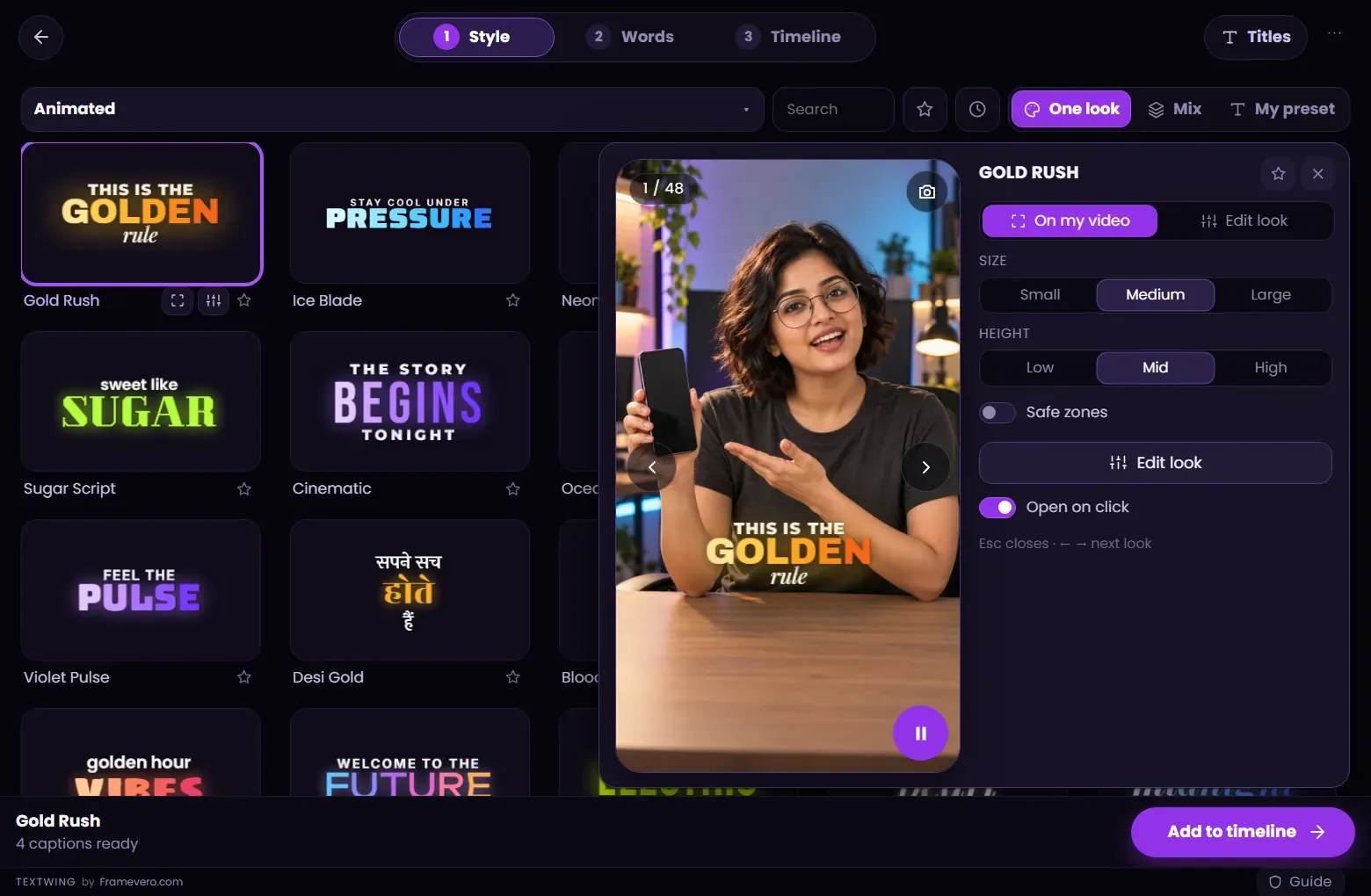
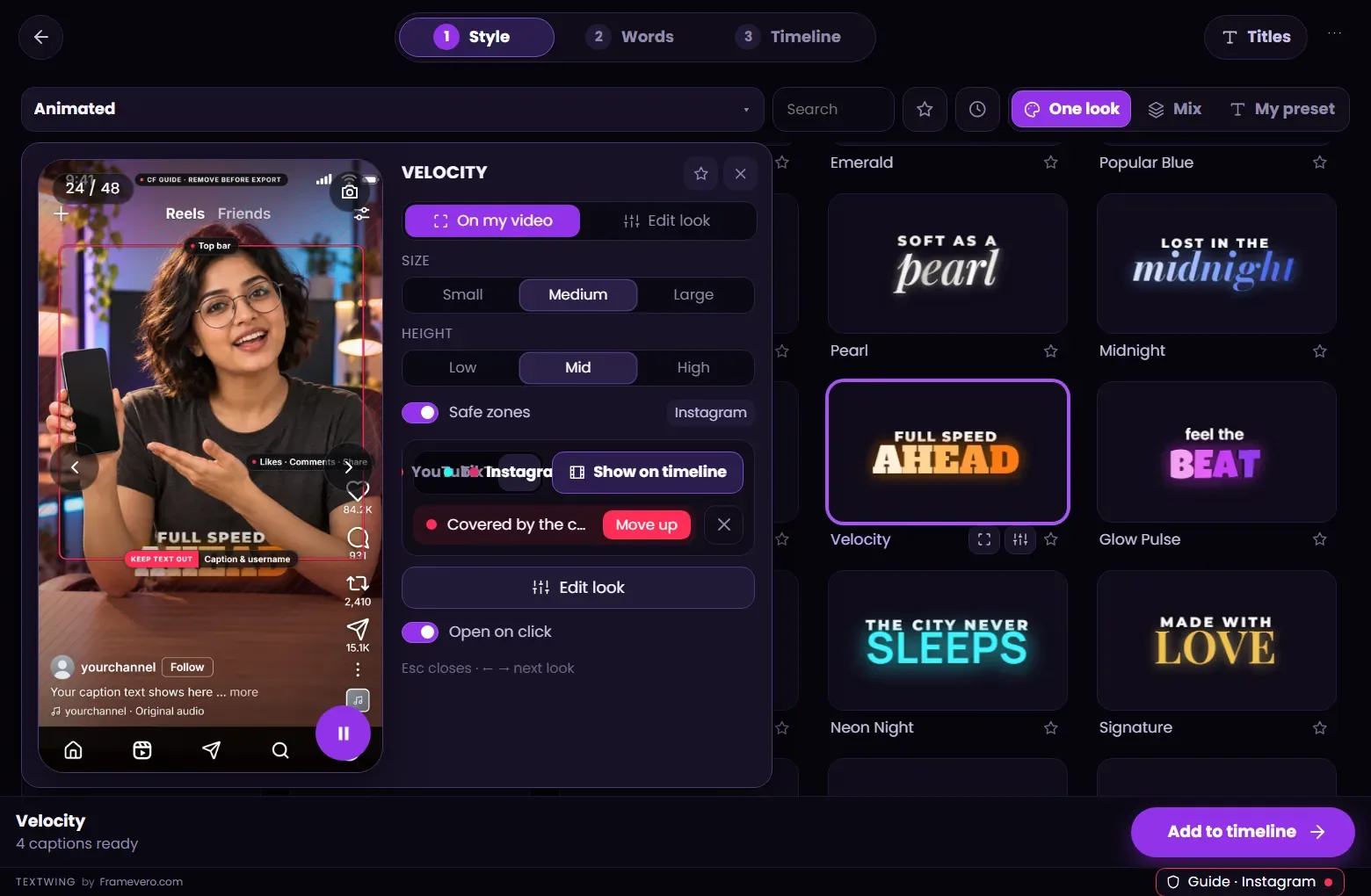
On the Style page, open a shelf and click a card. The Peek shows the look on a frame of your own vertical video. Use Mix if you want several looks to take turns.
Turn on the safe-zone Guide
Switch on Safe zones in the Peek and choose Instagram, TikTok or YouTube. The covered areas appear over your preview and TextWing says whether the look is clear.
Move up if it is covered
If the caption sits under the app's own text, press Move up. Height presets (Low, Mid, High) keep it there for every caption.
Add to timeline
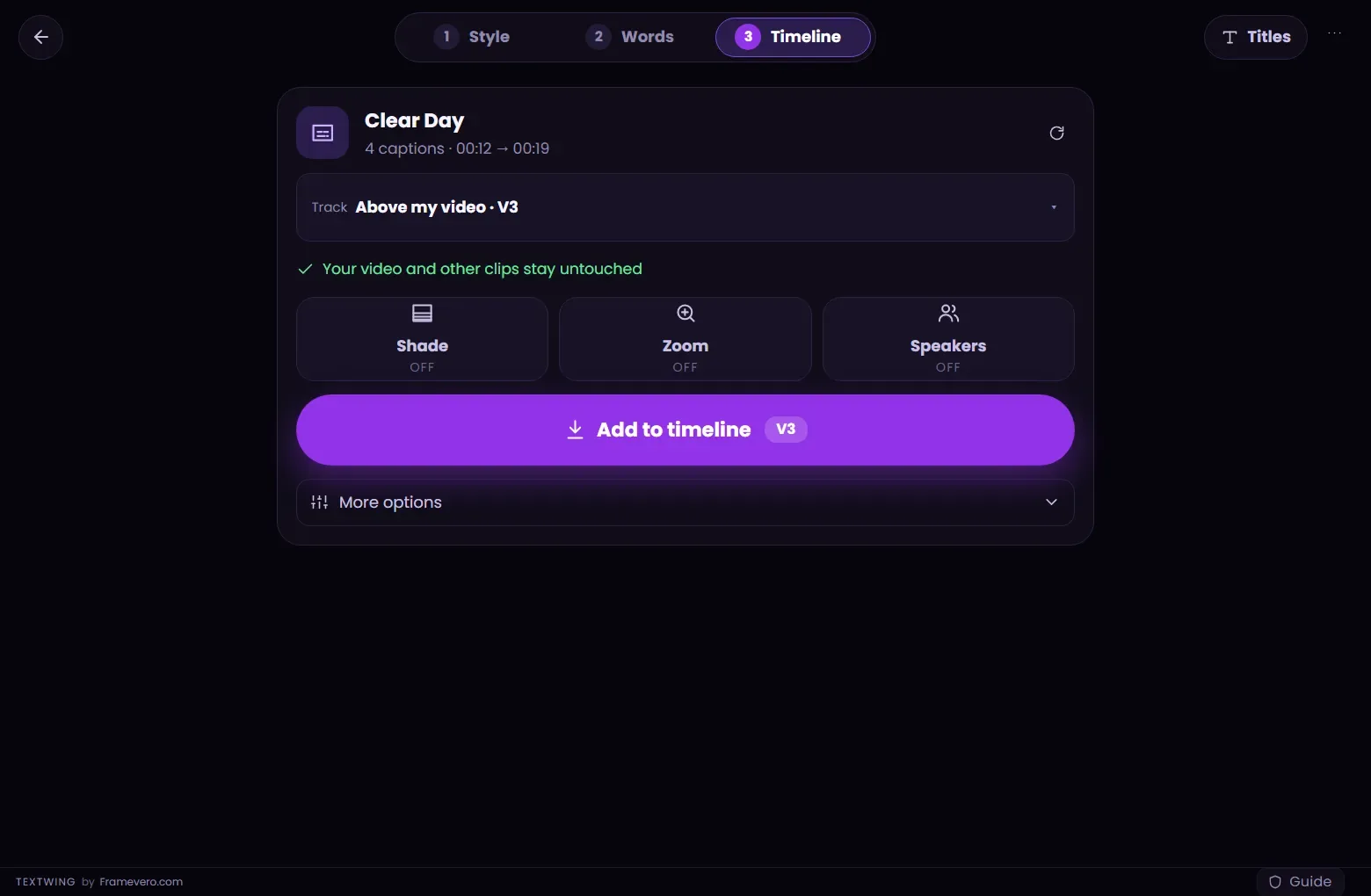
On the Timeline step, check the track (TextWing picks a free one above your video) and press Add to timeline. The captions arrive as native Premiere Pro text layers. If you change the cut later, press Rebuild.

Areas each app covers on a 1080 × 1920 frame (TextWing's Guide uses the same numbers)
| App | Top | Bottom | Sides |
|---|---|---|---|
| Instagram Reels | 14% (≈ 270 px) | 35% (≈ 670 px) | 6% each (≈ 65 px) |
| TikTok | 240 px | 660 px | 120 px, plus a 180 px button column on the right from 840 px down |
| YouTube Shorts | 288 px | 672 px | 48 px left, 192 px right |
Good to know
Tips from the edit
- Show on timeline puts the guide on a top track while you edit. Remove it before export.
- Auto words on screen keeps 2 to 5 words on 9:16 frames.
- Shade adds a soft dark gradient behind bright looks so they read on any footage.
Questions
Where do these numbers come from?
From each platform's own safe-zone guidance for vertical video: Meta's Reels guide, TikTok's safe-zone file and Google's vertical video safe zone. Apps change their layouts, so TextWing's Guide is checked before each release.
How many templates are there?
More than 300 handmade looks, on shelves such as Animated, Creator Picks, Emoji and Classic, with looks made for Hindi too.
Do the templates work for 16:9 too?
Yes. Words on screen and placement follow the sequence's frame shape, so the same look works on YouTube long-form.
More guides
Free trial · Windows
Try it on your own video.
Captions made on your PC, placed as native text layers inside Premiere Pro.
3 minutes of captions · 7 days · 9 looks on your timeline · no card