


Premiere Pro guide · captions
Auto captions in Premiere Pro, two ways.
Premiere Pro can transcribe speech and make plain subtitles on its own. For animated captions in a styled look, TextWing does it in four steps without leaving the panel.
In Premiere Pro, open the Text panel, transcribe the sequence, then create captions from the transcript. That gives plain subtitle blocks. For animated, word-by-word captions in a ready look, TextWing transcribes on your PC and places them as native text layers: Generate, pick a look, check the words, Add to timeline.
Option 1 · no plugin
Premiere Pro's own Speech to Text
Built into Premiere Pro, no plugin needed:
- Open Window › Text and the Transcript tab, then Transcribe sequence. Pick the spoken language.
- Switch to the Captions tab and choose Create captions from the transcript. Set the line length and number of lines.
- Style the captions in the Properties or Essential Graphics panel and save the style as a Track Style.
The result is a static subtitle track. Word-by-word highlights, pop-in motion or a different look per caption have to be built and keyframed by hand.
Option 2 · TextWing
Step by step, on the real panel.
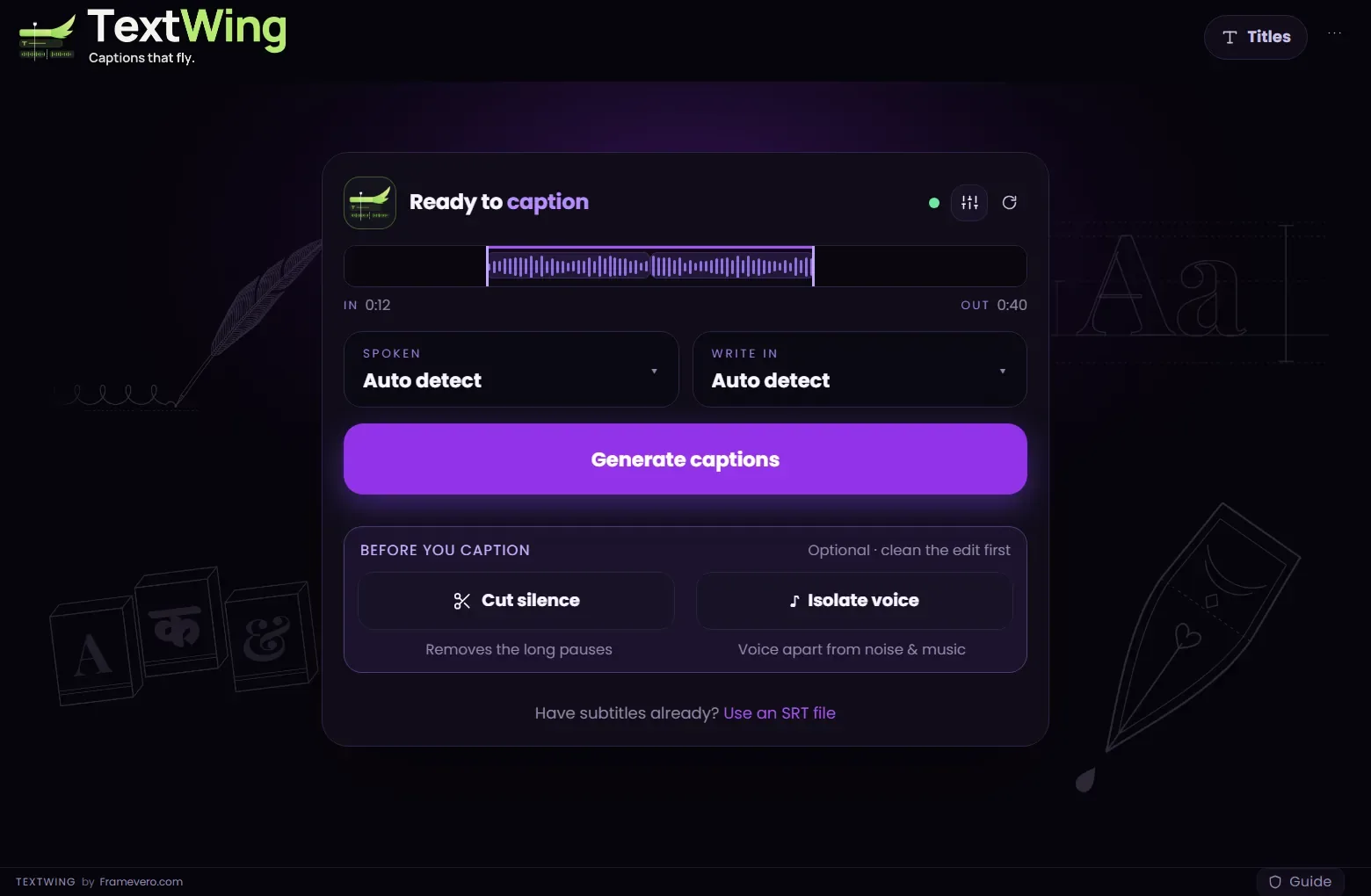
Set In and Out, then Generate captions
Open TextWing (Window › UXP Plugins › TextWing). On the start card, set In and Out around the part you want, or select clips. Spoken and Write in can stay on Auto detect. Press Generate captions.
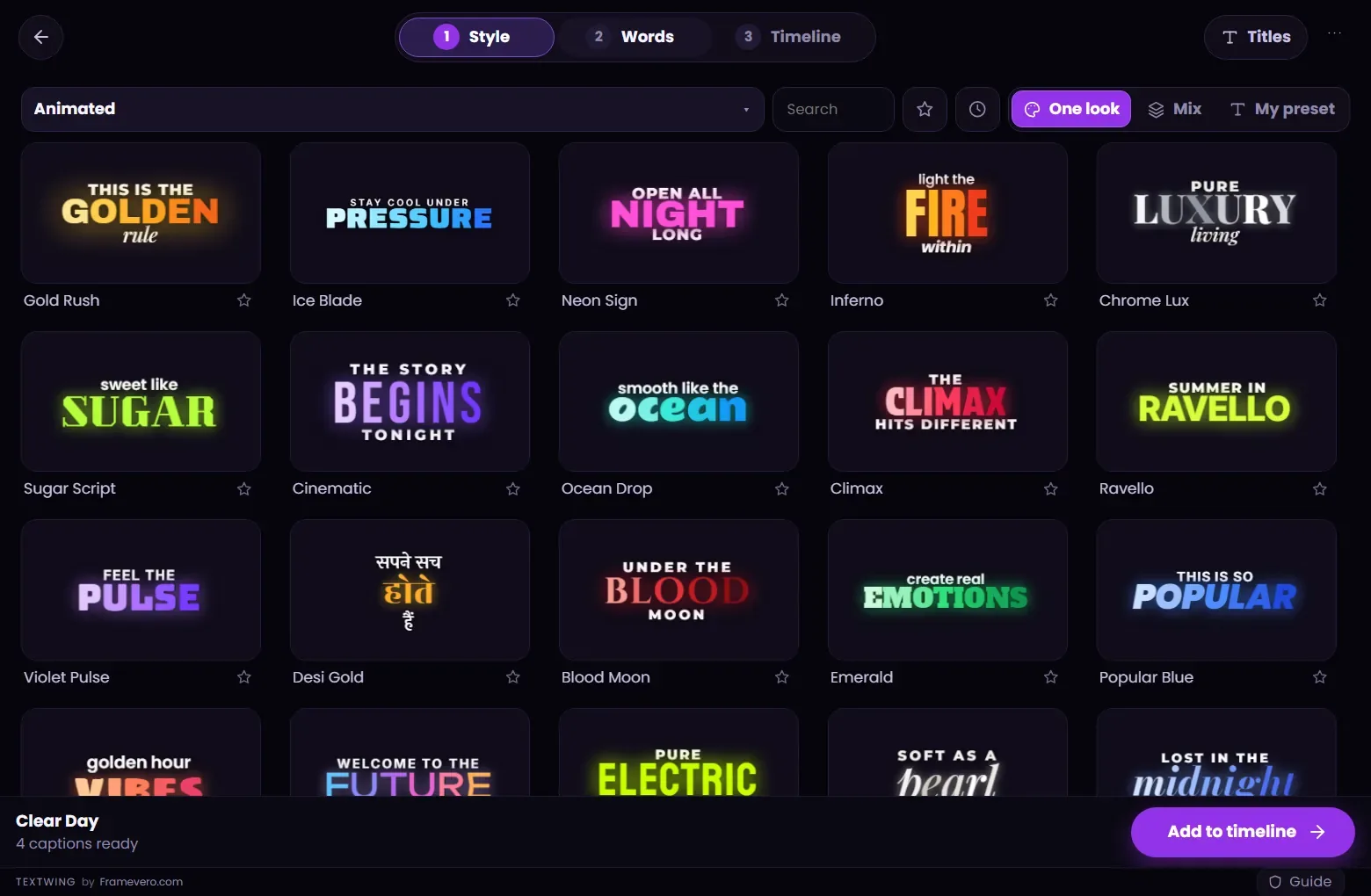
Pick a look
On the Style page, choose One look, Mix or My preset, then click a card. The Peek shows the look on a frame of your own video. Every card plays its own animation.
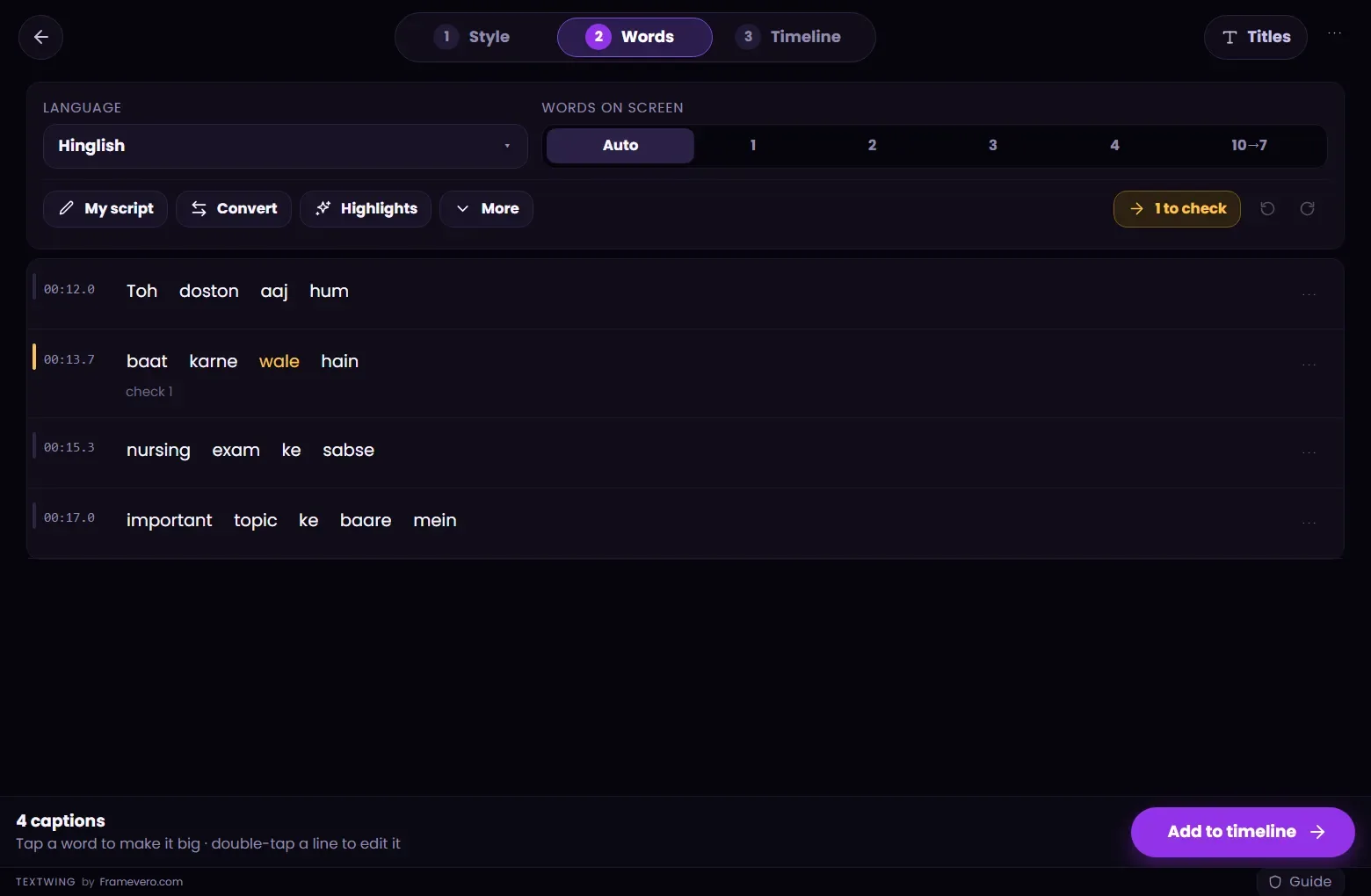
Check the words
On the Words page, read each caption against its time. Words on screen sets how many words show at once (Auto picks it from the frame shape). Tap a word to make it big; double-tap a line to fix it.
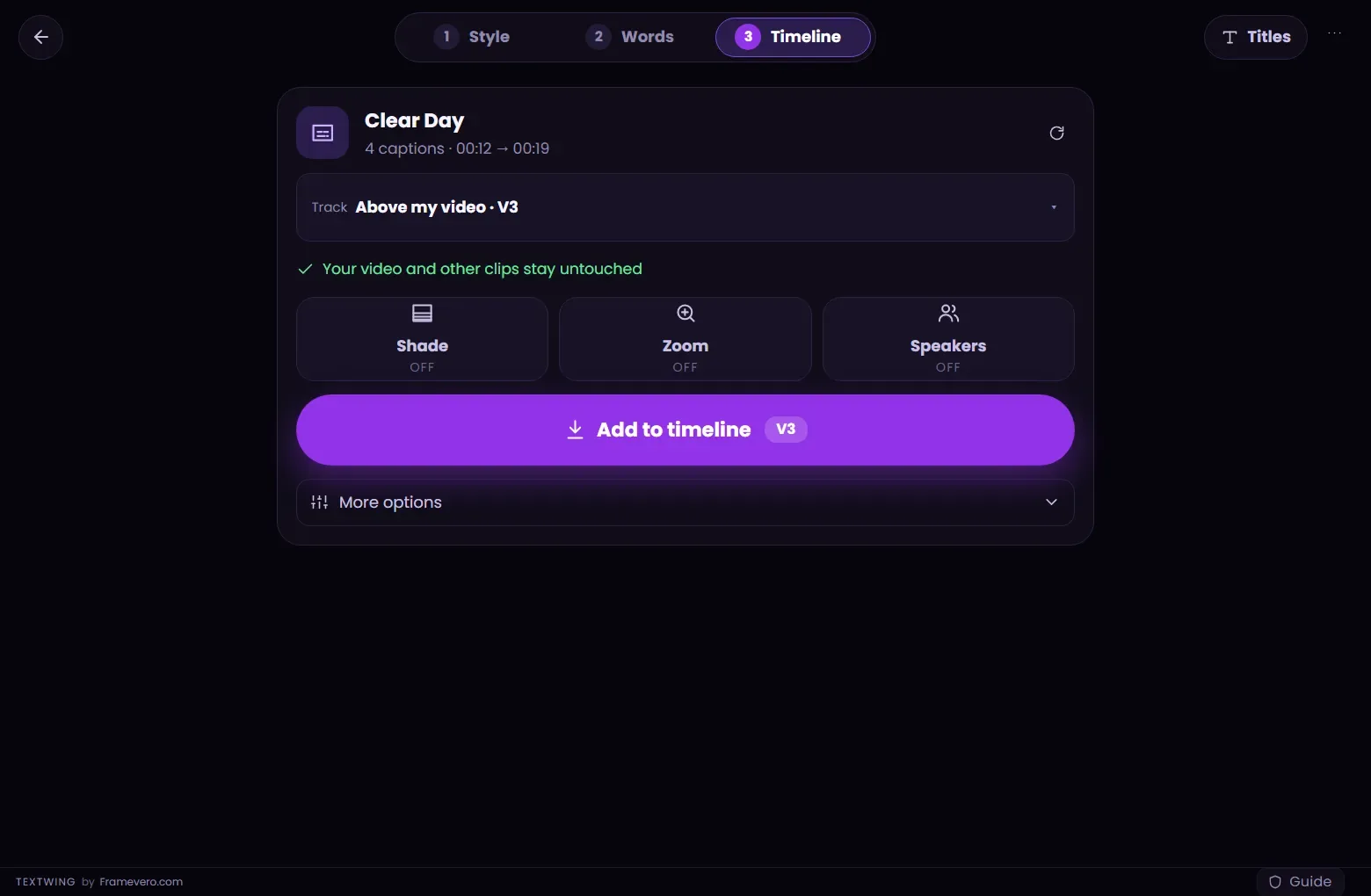
Add to timeline
On the Timeline step, check the track (TextWing picks a free one above your video) and press Add to timeline. The captions arrive as native Premiere Pro text layers. If you change the cut later, press Rebuild.


Good to know
Tips from the edit
- Caption only part of a video by setting In and Out first.
- Auto words on screen keeps 2 to 5 words on a 9:16 frame and longer lines on 16:9.
- Edit a caption on the timeline like any text layer. For bigger changes, edit in TextWing and press Rebuild.
- Have an SRT already? “Use an SRT file” on the start card skips the transcription.
Questions
Is Premiere Pro's Speech to Text free?
Yes, it is part of Premiere Pro. Its language packs download the first time you use a language.
Does TextWing upload my video?
No. Speech recognition runs on your own computer. The first start downloads the speech models once.
Are TextWing captions editable?
Yes. They are native Premiere Pro text layers on a video track, not MOGRTs, so you change words, fonts and colours the normal way.
Can I try it free?
Yes: 3 minutes of captions over 7 days, with 8 looks you can put on your timeline. No card.
More guides
Free trial · Windows
Try it on your own video.
Captions made on your PC, placed as native text layers inside Premiere Pro.
3 minutes of captions · 7 days · 9 looks on your timeline · no card