

Premiere Pro guide · motion
Animated captions without MOGRTs.
Caption packs sold as MOGRTs look good in the demo. On a 10-minute timeline you feel them. Native text layers move just as well and stay easy to edit.
A MOGRT caption pack places a Motion Graphics template for every caption, edited through Essential Graphics controls; packs built in After Effects can also slow playback. TextWing builds each caption as a native Premiere Pro text layer with its motion keyframed in, so you edit text, font and colour the normal way and nothing extra has to render.
Option 1 · no plugin
By hand in Premiere Pro
Without a plugin, animated captions are built one text layer at a time:
- Make a text layer per caption (or per word) with the Type tool.
- Keyframe Scale, Position and Opacity for the pop-in, and the colour for the spoken word.
- Copy the attributes to the next caption, then retime every one to the voice.
It works and gives full control, but a one-minute Reel can take an hour, and every timing change means moving keyframes again.
Option 2 · TextWing
Step by step, on the real panel.
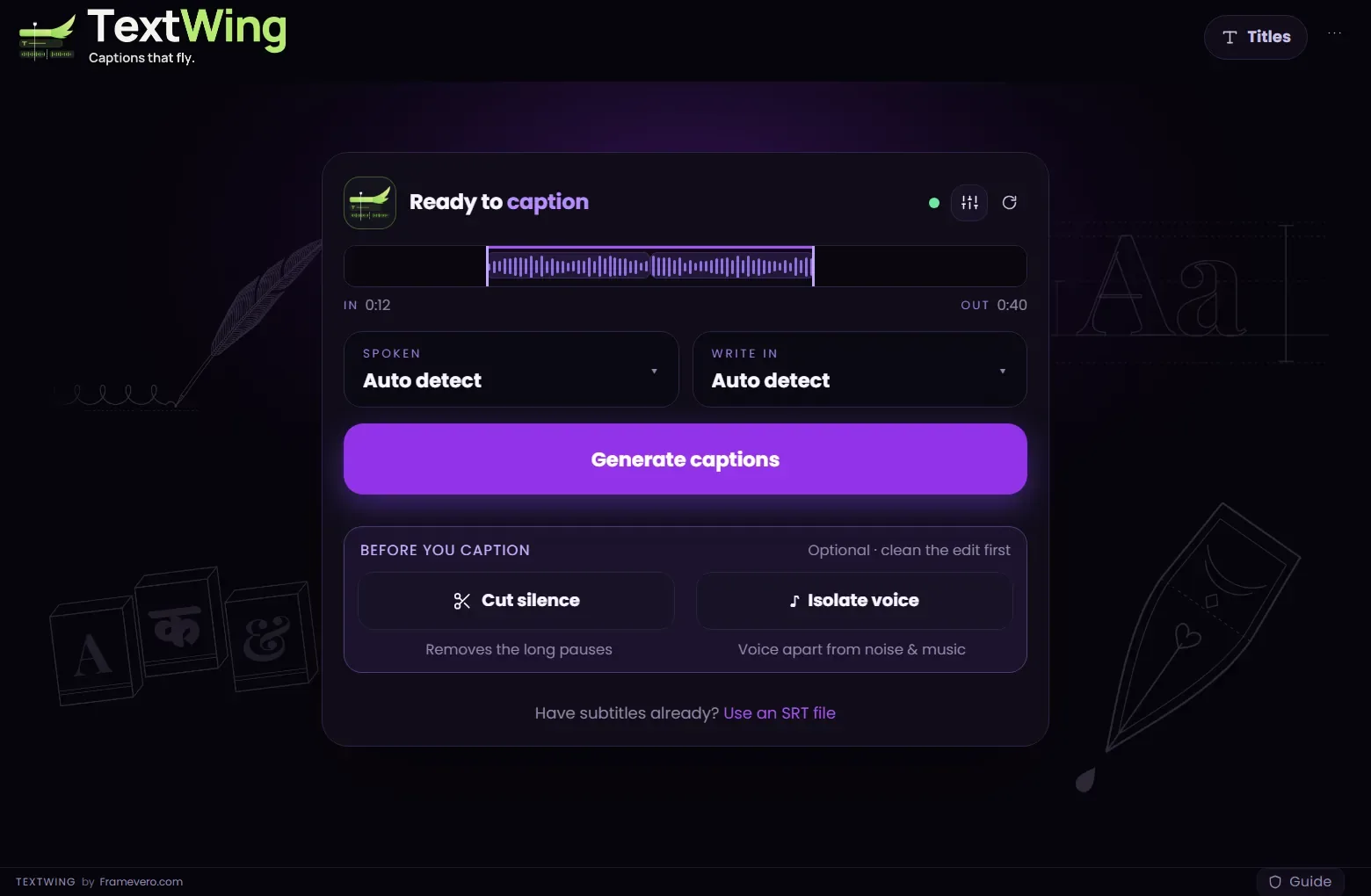
Set In and Out, then Generate captions
Open TextWing (Window › UXP Plugins › TextWing). On the start card, set In and Out around the part you want, or select clips. Spoken and Write in can stay on Auto detect. Press Generate captions.
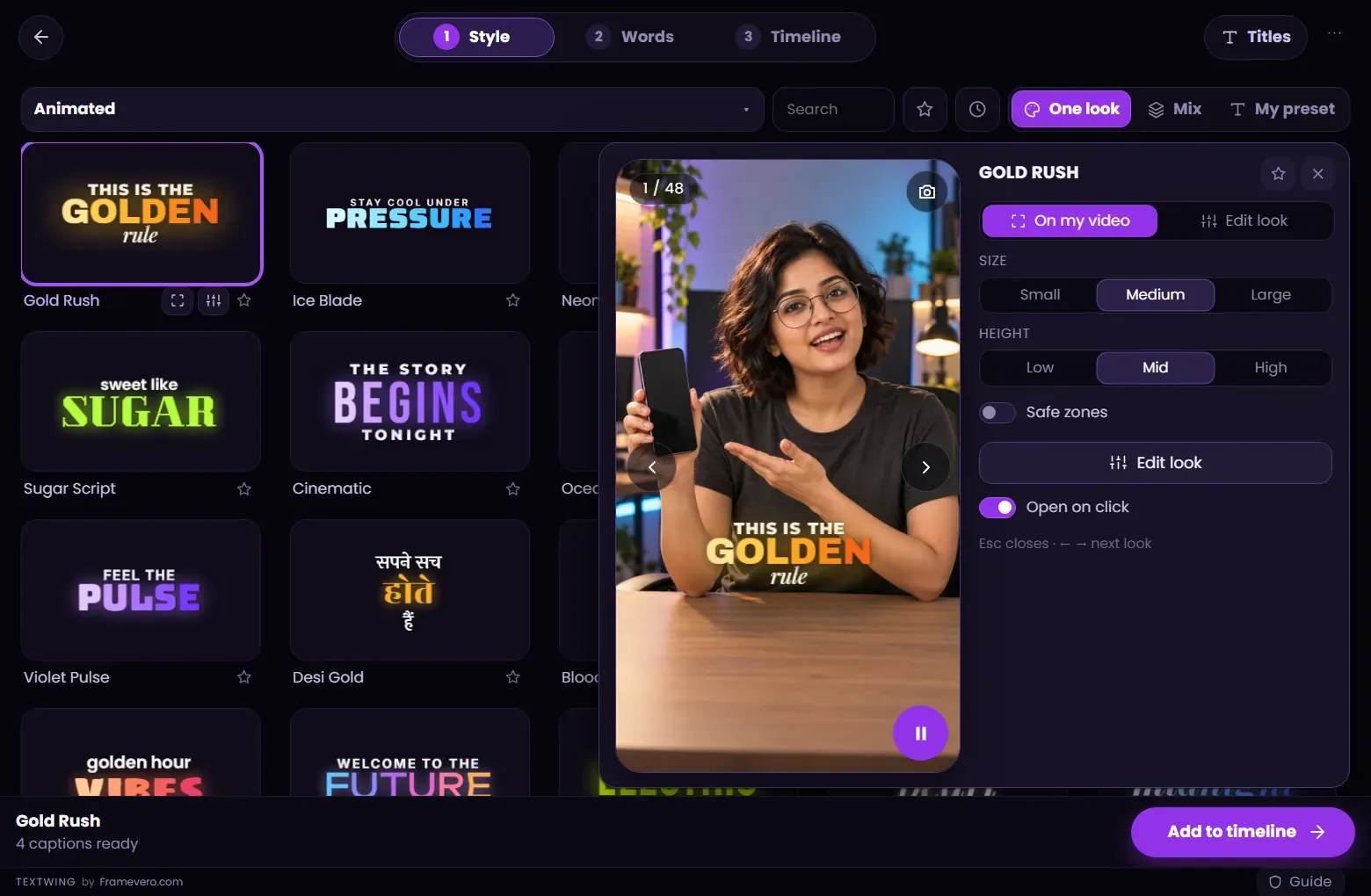
Pick a moving look
Every card on the Style page plays its own animation: pops, glows, karaoke highlights, word-by-word builds. Click one to see it on your frame in the Peek.
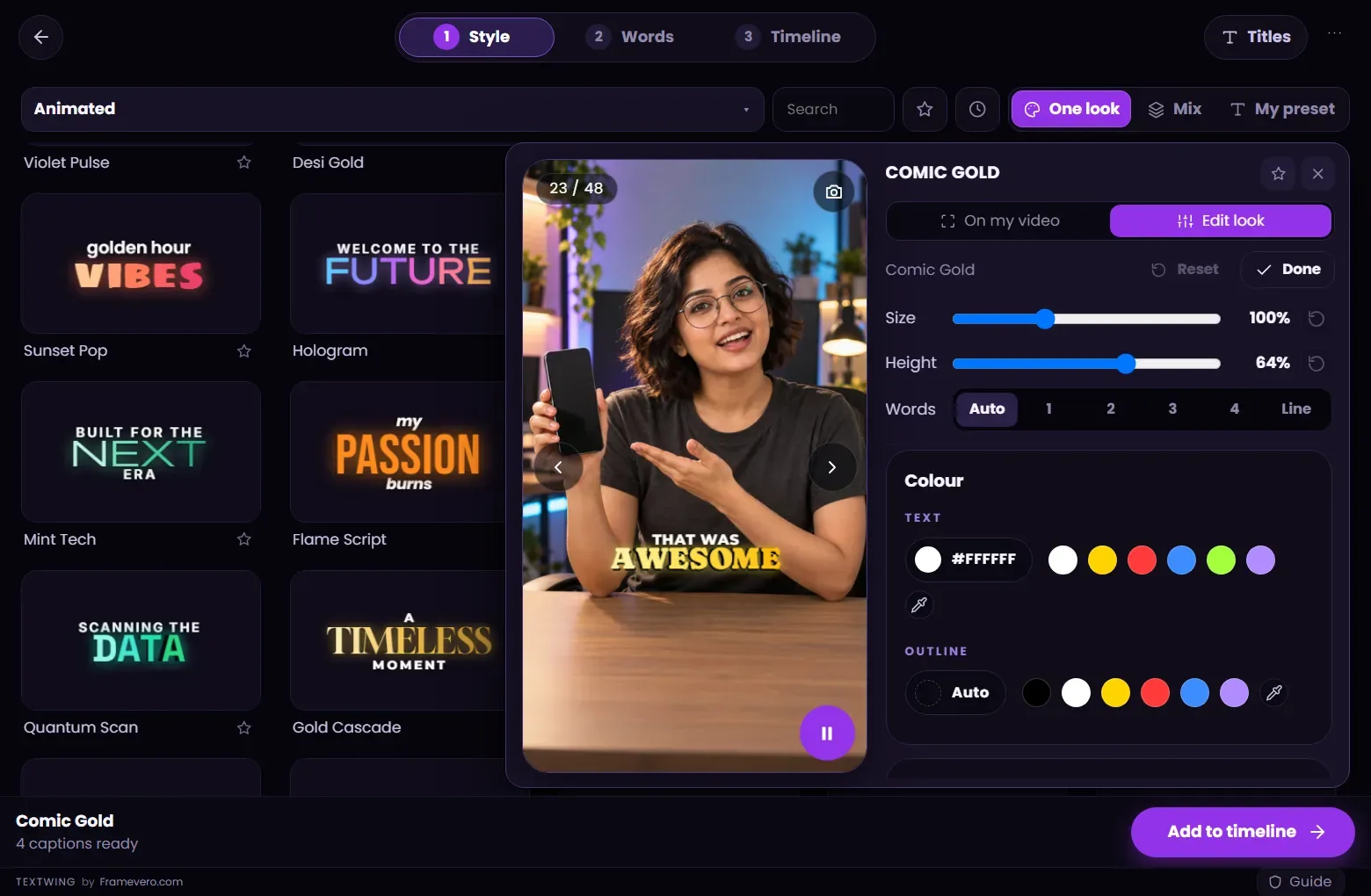
Tune the motion
Edit look changes colours, fonts, glow, shadow and motion. Size and Height presets move it without touching your stored settings.
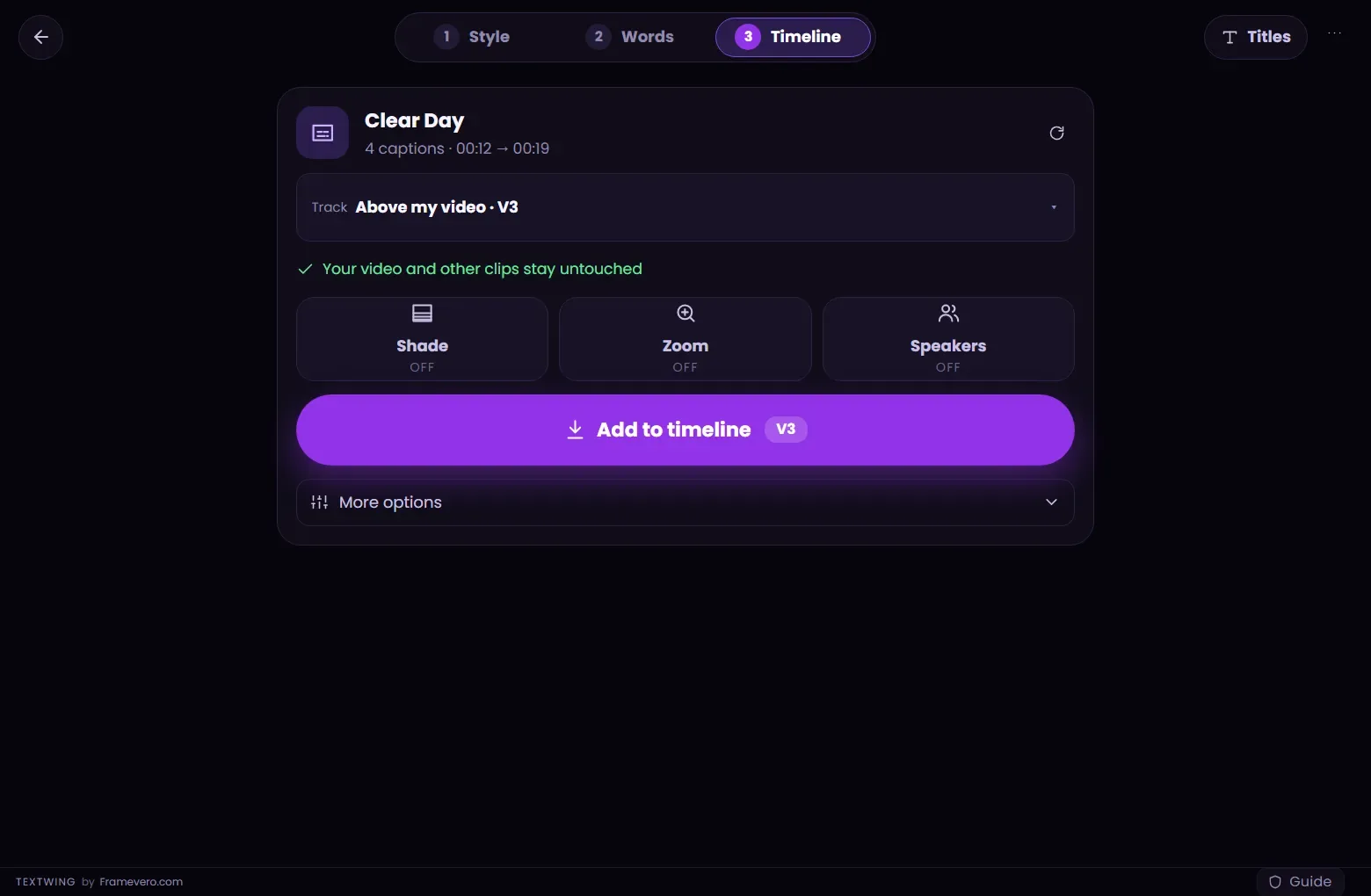
Add to timeline
On the Timeline step, check the track (TextWing picks a free one above your video) and press Add to timeline. The captions arrive as native Premiere Pro text layers. If you change the cut later, press Rebuild.


MOGRT caption packs and TextWing, side by side
| MOGRT caption pack | TextWing | |
|---|---|---|
| What lands on the timeline | A Motion Graphics template per caption | A native Premiere Pro text layer per caption |
| Fixing a word | Essential Graphics field for that caption | Type in the text layer, or fix it in Words and Rebuild |
| Timing to the voice | Placed and trimmed by hand | Each word timed from the speech |
| Looks | The pack you bought | 300+ handmade looks, Mix and My preset |
| After Effects needed | Only to change the template itself | No |
Good to know
Tips from the edit
- Want variety? Mix lets up to ten looks take turns through the video.
- Your own brand style: style one text layer in Premiere, then use it as My preset.
- Changing the cut later? Rebuild moves the captions with it.
Questions
Can I still use a MOGRT I like?
Using a MOGRT that is already on your timeline as My preset, animations included, is planned for the next update. Today My preset follows a text layer you style in Premiere.
Will the captions look the same after export?
Yes. They are ordinary Premiere Pro graphics, so they export like any title.
Do I need After Effects?
No. Everything happens in the TextWing panel inside Premiere Pro.
More guides
Free trial · Windows
Try it on your own video.
Captions made on your PC, placed as native text layers inside Premiere Pro.
3 minutes of captions · 7 days · 9 looks on your timeline · no card